
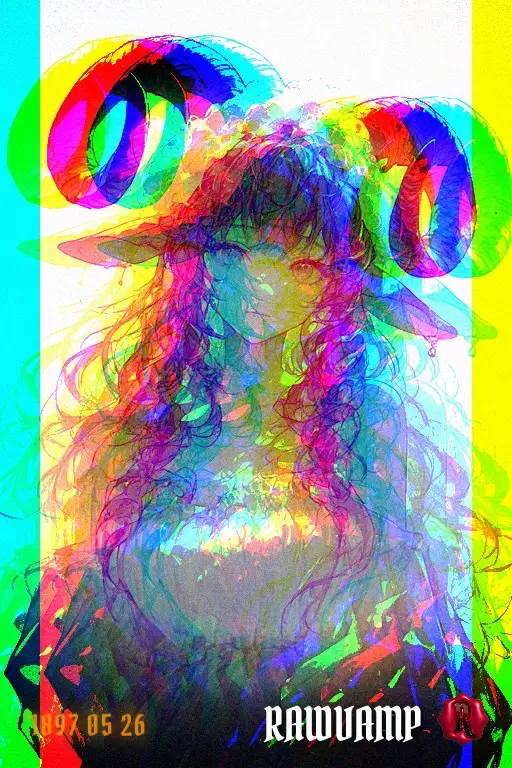
Glitch Effect Online with an Image Glitcher

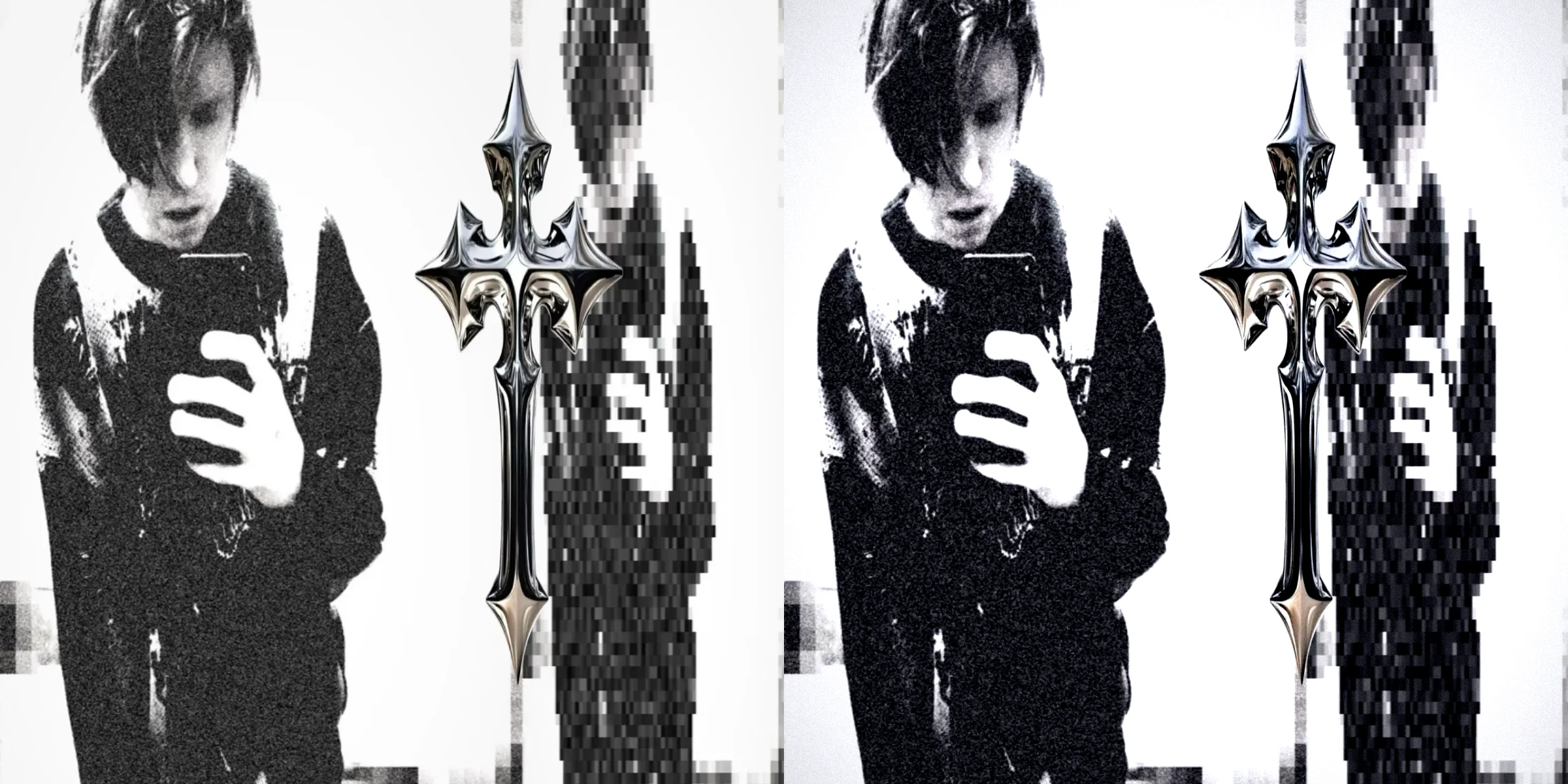
Break up clean pixels with color offsets, displaced slices and scanlines. Start a glitch effect from your own photo, then tune the distortion so the face, shape or detail you want still comes through.

Skip to photo editor
Preview

Good photos.
Bad influence.

or drop them anywhere in the editor

Photos stay on your device. Download edits before leaving.

See What the Glitch Effect Changes

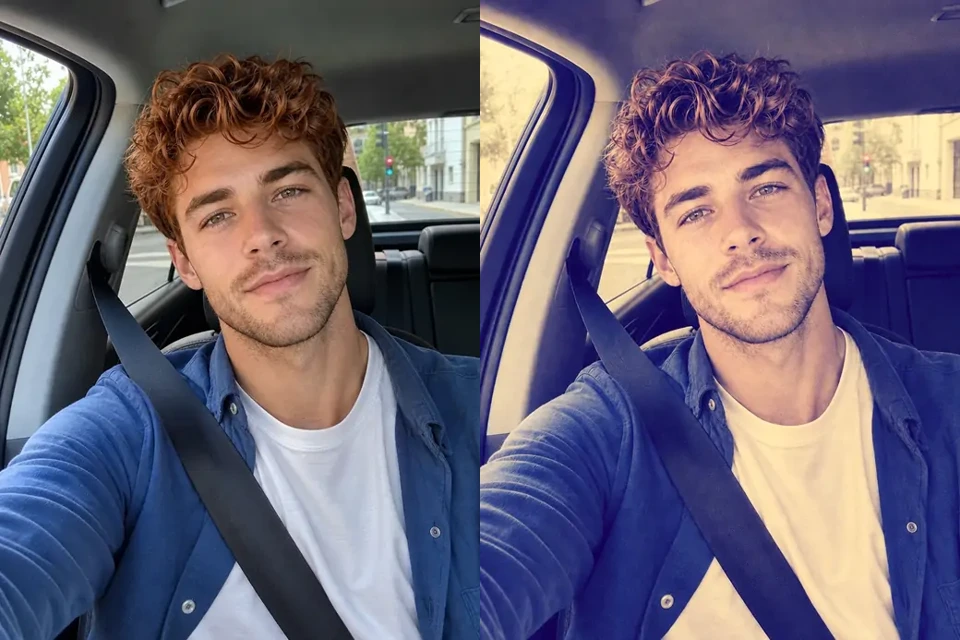
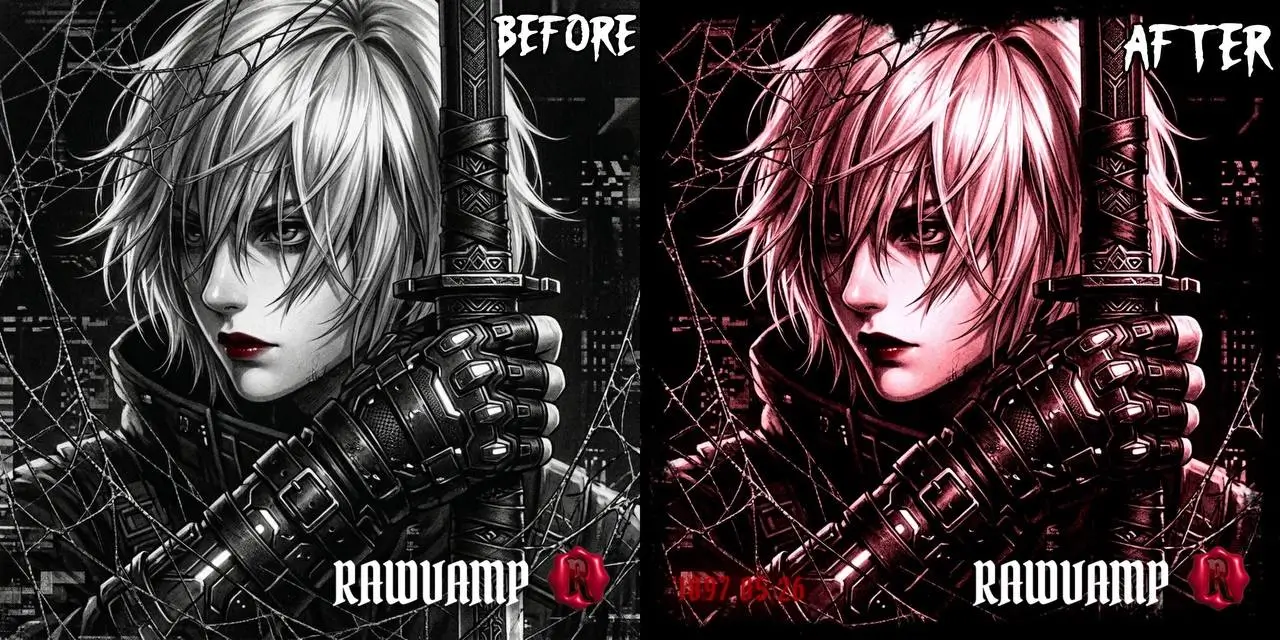
Slide between a matched original and a glitch-style treatment to inspect color edges, shifted detail and balance. Use these visual cues when choosing and refining a glitch effect for your own photo.

Original Photo
Glitched Photo
Glitched PhotoOriginal Photo

Look around the outline of your subject to judge RGB separation, then check whether horizontal slices interrupt an important detail.

Use the original as your reference when the treatment becomes too dense. Dial back the strongest control before adding another layer.

Move the slider to compare

Create a Glitch Effect in Three Steps

Glitch Your Photo

Open Your Image

Choose a JPG, PNG or WebP photo. The image glitcher starts from that image, so pick a subject with edges or texture you want to distort.

Build the Glitch Effect

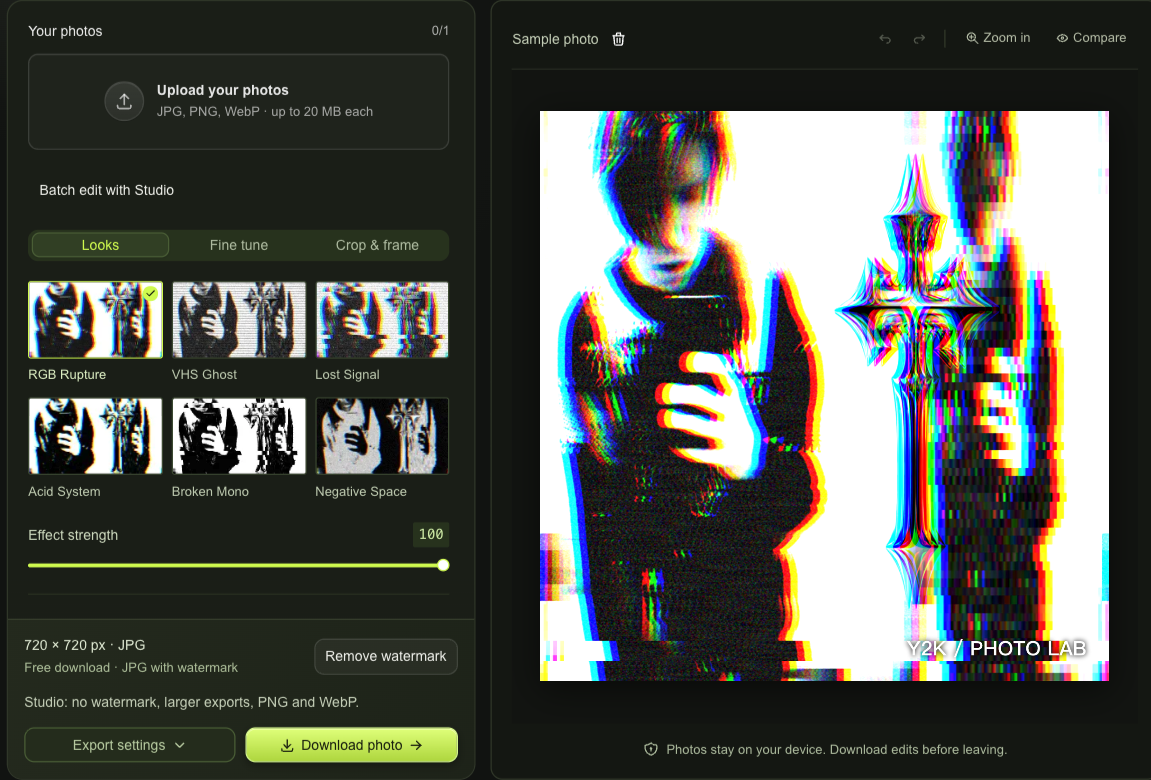
Choose a preset and vary its strength. With Studio, adjust RGB shift, slices, scanlines and grain, using Compare to inspect the outlines and details.

Review the Still Image

Check your crop and final settings, select an available format and export size, then download the photo with its glitch effect before leaving the page.

Tune the Glitch Filter Around Your Subject

Image Glitcher workspace with a photo queue, live preview and download controls

Separate Color Without Losing the Shape

With Studio, RGB shift pulls color channels apart, turning outlines into colored edges. Use the image glitcher to build a glitch effect around a face, silhouette or sign, then balance exposure and contrast to keep the source recognizable.

Glitch Your Photo
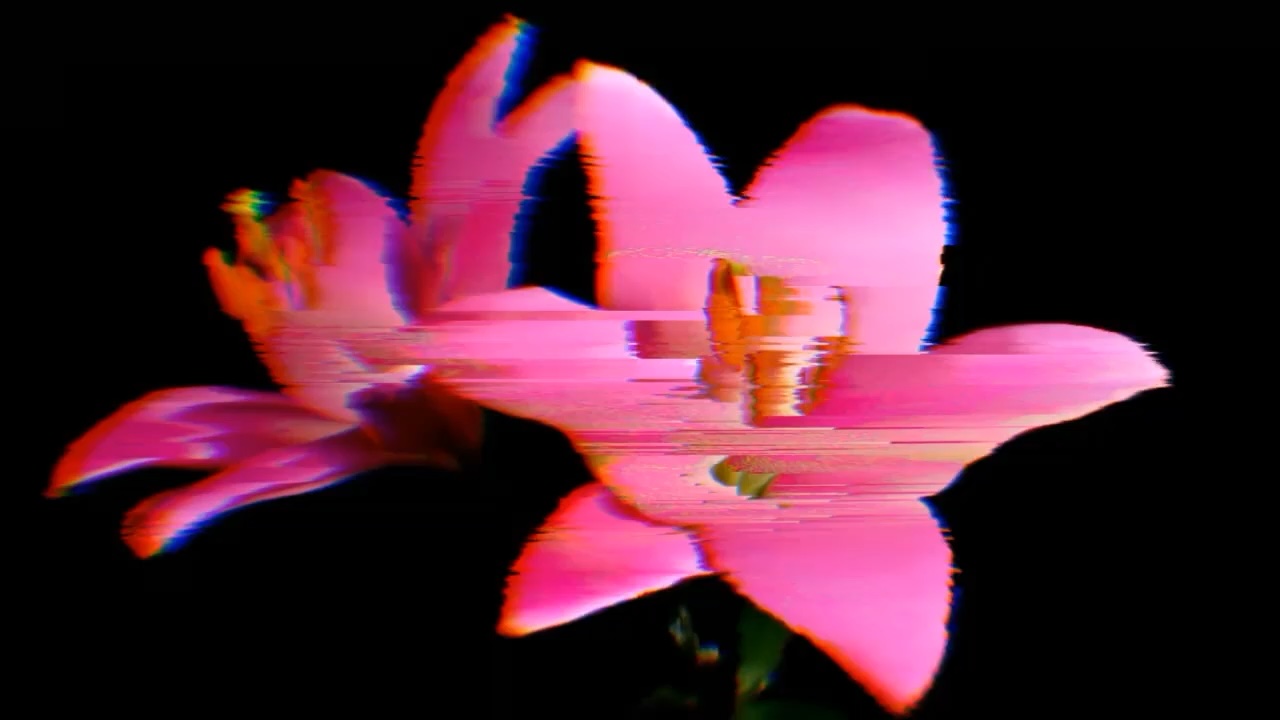

Pink flower with separated RGB edges and horizontal signal tears

Layer Slices, Scanlines and Grain

With Studio, layer separate slices, scanlines and grain controls around a glitch image. The glitch effect updates in the preview, so you can judge each change before combining it with inversion, color adjustments or a new crop.

Glitch Your Photo

A Glitch Image You Can Shape

A good glitch effect has a focal point as well as distortion. Keep the parts that make your photo interesting, then decide where color, texture and broken lines should interrupt the frame.

Choose the Amount of Disruption

Adjust the glitch effect instead of relying on a fixed overlay. Keep a portrait readable, or push the separation further for a harsher static image.

Change Direction Without Restarting

Use undo and redo while you explore. A rougher glitch photo can become a subtler version without reopening the source or rebuilding every earlier adjustment.

Orange-lit portrait with grunge texture and a date stamp

Carry a Look Across a Set

With Studio, sync a glitch effect across up to ten photos, then return to each image for individual changes where faces, lighting or framing need different treatment.

Edit in Your Own Browser

The image glitcher processes your photo locally rather than uploading it for editing. Keep the result you want by downloading it during the current session.

Glitch Effect Questions

Y2K Photo Lab

Find Your Glitch Effect in the Pixels

Open a photo, choose a starting preset and pull the glitch effect toward subtle color drift or a more fractured frame. Keep the version that fits your image.

Glitch Your Photo