
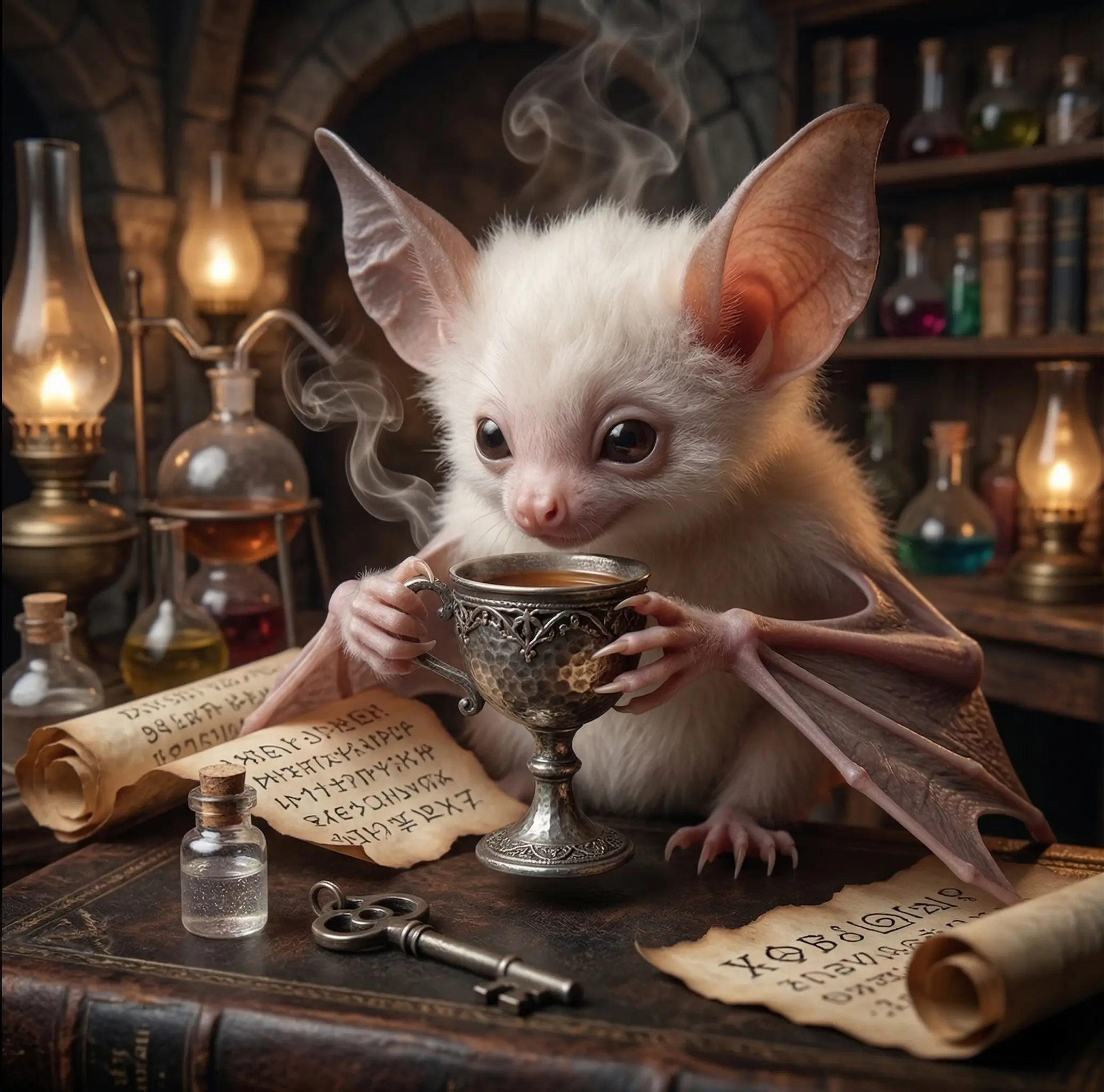

Darken Image Online with a Dark Filter

Bring down a bright photo or build a deeper mood around your subject. Use Darken Image to balance exposure, shadows and contrast, then compare the result before the details you care about disappear.

Skip to photo editor
Preview

Good photos.
Bad influence.

or drop them anywhere in the editor

Photos stay on your device. Download edits before leaving.

Darken Image Without Guessing at the Result

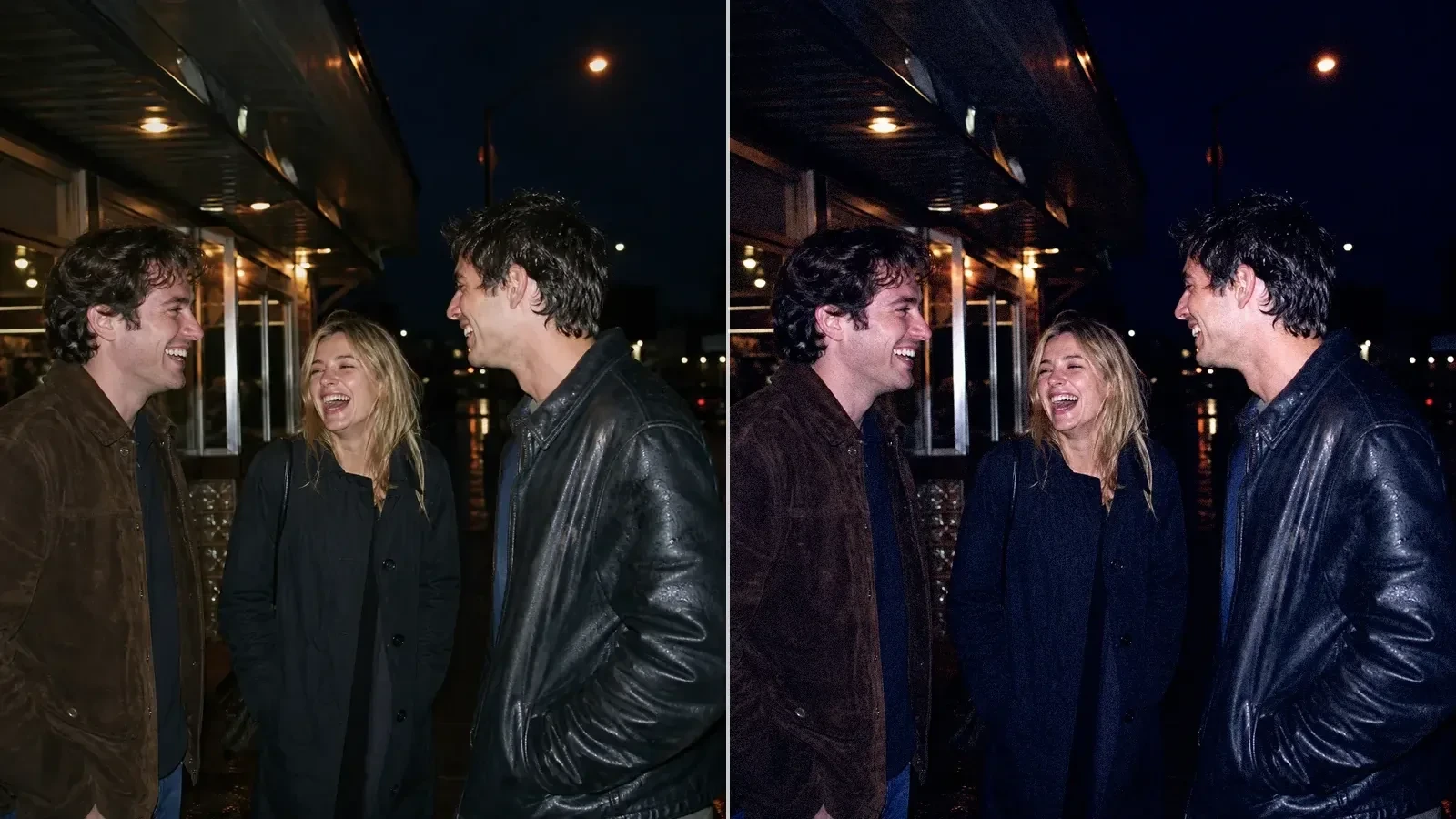
Compare a matched original and darker treatment to see how brightness affects edges, colors and visible detail. In Darken Image, use that visual reference to choose a starting preset for your own photo.

Original Photo
Darkened Photo
Darkened PhotoOriginal Photo

Check the darkest parts of clothing, hair and buildings. They can merge together before the overall image looks too dim.

Make small exposure changes first, then compare the shadows separately before pushing the frame into a heavier look.

Move the slider to compare

How to Use Darken Image

Darken Your Photo

Choose a Starting Photo

Open a JPG, PNG or WebP in Darken Image. Use the original as a reference for the light and detail you want to preserve.

Balance Exposure and Shadows

Start with a dark preset and adjust its strength. With Studio, refine exposure, shadows and contrast, checking faces and darker areas as you go.

Compare and Download

Review the result in Darken Image, choose an available export format and size, then save the finished photo before closing the page.

Control How the Dark Filter Feels

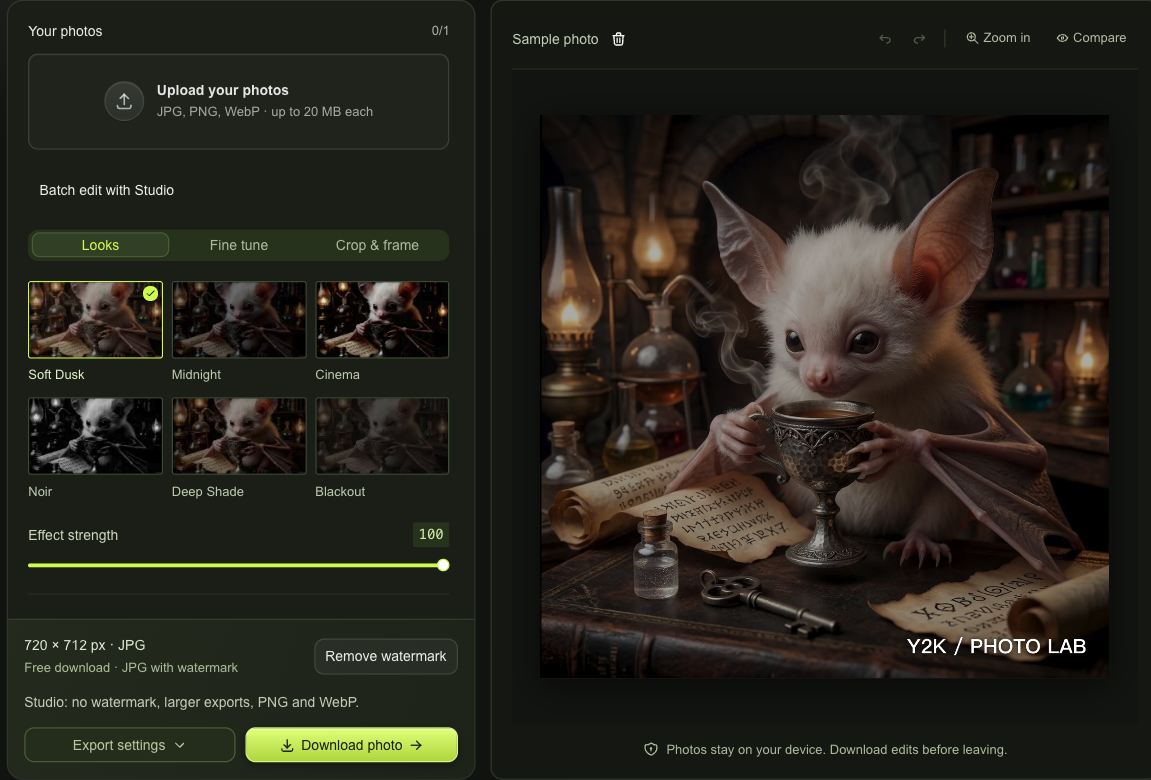
Darken Image workspace with a photo queue, live preview and download controls

Darken Image with More Than Exposure

With Studio, use exposure to change overall brightness in Darken Image, then refine shadows and contrast around your subject. Balance these adjustments to keep darker areas distinct, and compare the result before you download the finished photo.

Darken Your Photo
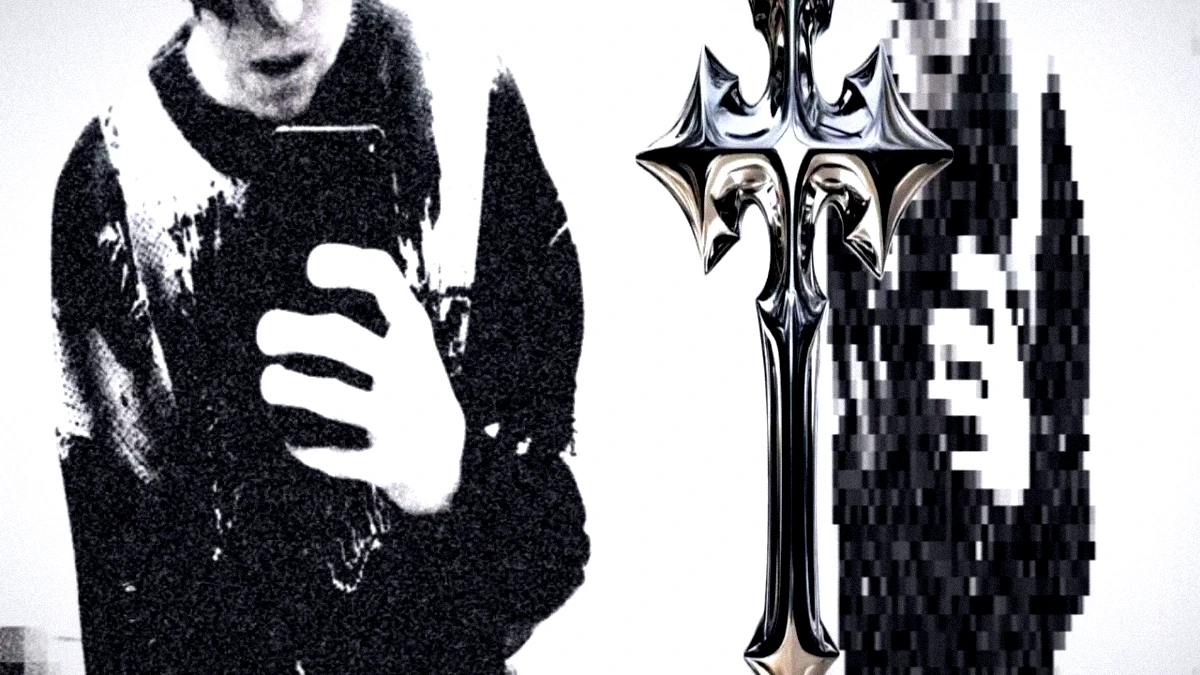
Monochrome selfie with a cool Y2K color and grain treatment

Choose Color, Texture and Framing

A dark filter can feel soft, cool or stark depending on your source. With Studio, use Darken Image to adjust saturation, color temperature, tint, grain and vignette. Crop distracting edges to give the remaining light a clearer role.

Darken Your Photo

Make a Darker Photo with Intention

Darken Image gives you a visible reference for a decision that can be easy to overdo. Judge the mood, keep a clear subject and stop where the photograph still says what you want.

Keep an Eye on Detail

Use Compare to check dark clothing, hair or scenery against the original. Back off an adjustment when separate shapes begin to merge.

Try More Than One Mood

Undo and redo let you revisit a softer edit after trying deeper blacks. You can explore a dark filter without losing your earlier decisions.

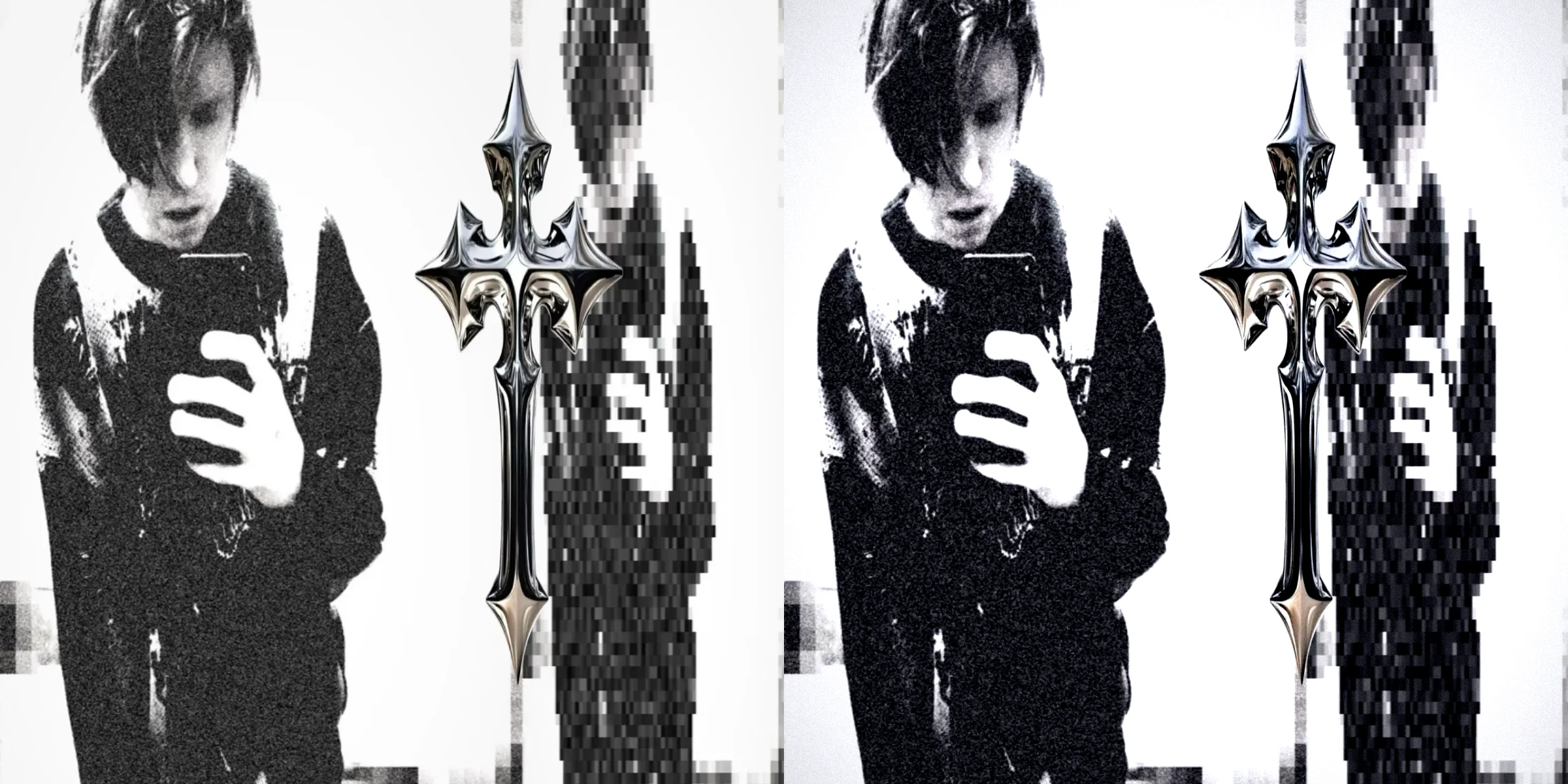
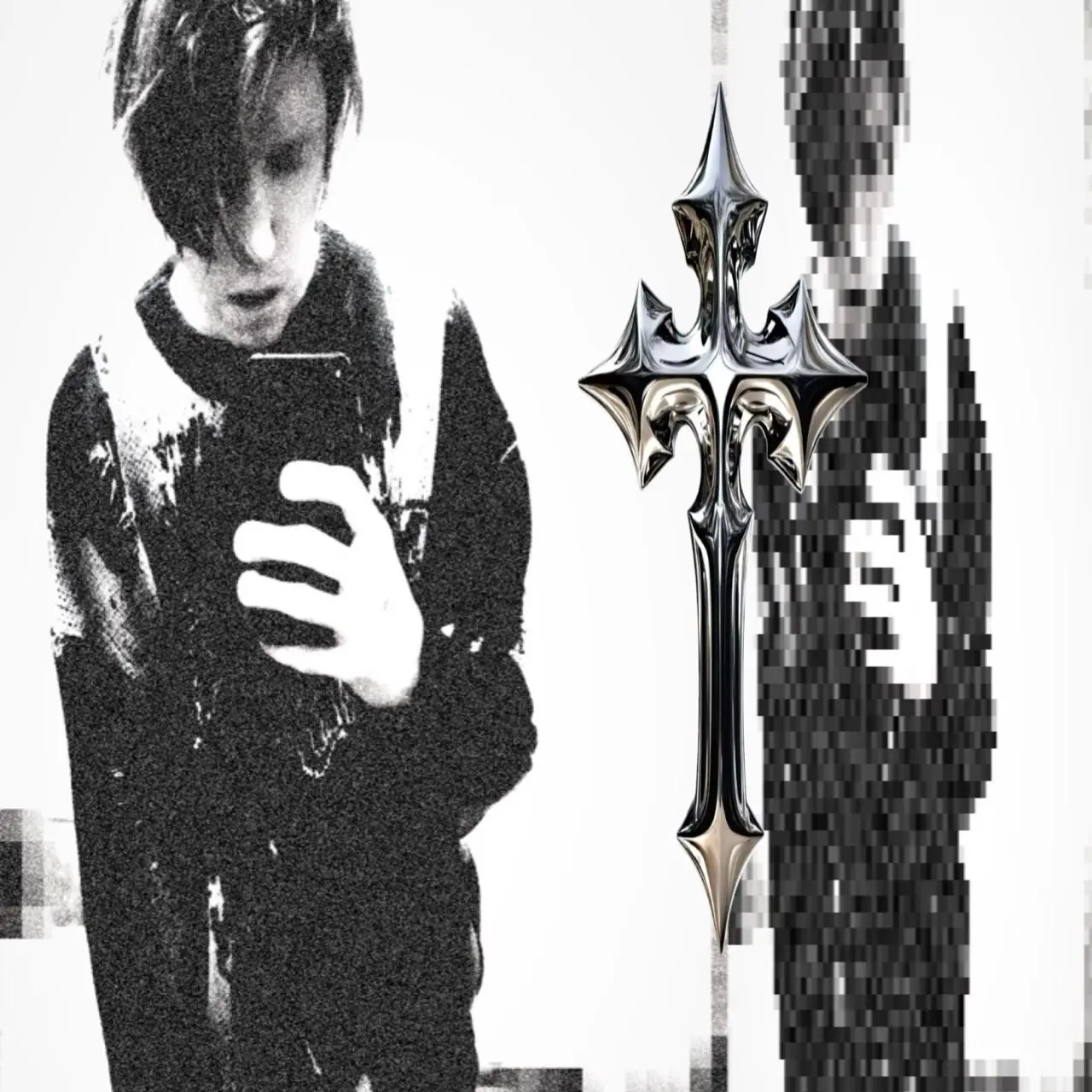
High-contrast black-and-white portrait beside a chrome cross

Balance a Whole Photo Set

With Studio, sync a look across up to ten photos in Darken Image, then adjust individual frames when different exposure or lighting makes the same settings feel uneven.

Keep Photos in Your Browser

Darken Image processes the file locally. Your imported image is not uploaded for editing, and you choose which finished version to download during the session.

Darken Image Questions

Y2K Photo Lab

Darken Image Until the Mood Feels Right

Bring in a photo, make a small adjustment and compare. Use Darken Image to keep the atmosphere you want, then download the version you choose.

Darken Your Photo